
Connecting a Blu-ray Player to a Modern TV: Compatibility, Sound, and Setup Help
September 2, 2026
You have the Blu-ray player, the TV has several HDMI inputs, and the connection seems as though it should take only a minute. Then the TV reports no signal, the movie plays without sound, HDR never appears, or everyone needs three remotes just to watch a disc.
Connecting a Blu-ray player to a modern TV is often straightforward when it is the only device involved. The decisions become more important when the room also has a mounted TV, soundbar, AV receiver, streaming player, game console, or media furniture designed to hide the equipment.
Before moving devices or buying more cables, it helps to understand how the player fits into the entire entertainment system.
Can You Connect a Blu-ray Player Directly to a Modern TV?
Most Blu-ray players connect to a modern TV through HDMI. The player sends picture and sound through the same media cable, and the TV displays the player after the corresponding input is selected.
A basic direct connection generally requires a compatible HDMI output on the player and an available HDMI input on the TV. However, direct-to-TV is not automatically the best arrangement for every room. Your sound system, player format, TV features, and preferred remote behavior all affect the right signal path.
Older players may also have connection types that are absent from a newer television. In that situation, an adapter is not always a clean or reliable answer. The player’s available outputs, the formats it supports, and the television’s inputs should be checked together before purchasing conversion equipment.
Standard Blu-ray and 4K Ultra HD Blu-ray Are Not the Same
A modern 4K TV can display content from a standard Blu-ray player, but that does not turn the player or disc into a native 4K source. A 4K Ultra HD Blu-ray disc normally requires an Ultra HD Blu-ray player that supports that format.
If 4K resolution or HDR is important, every relevant part of the connection has to support the intended format. That includes the player, disc, selected TV input, HDMI cable, and any soundbar or receiver positioned between the player and television.
This distinction often explains why a movie plays correctly but does not look the way the homeowner expected. The system may be working while one device or setting in the chain limits the final picture format.
Should the Player Connect to the TV, Soundbar, or Receiver?
There are three common arrangements, and the right choice depends on the equipment already in the room.
- Player to TV: A practical option when the television is the main connection hub. Sound can remain on the TV or be sent to a compatible soundbar or receiver.
- Player through a soundbar: Possible when the soundbar has an HDMI input intended for media devices and supports the desired video formats.
- Player through an AV receiver: Useful in systems where the receiver manages several sources and speaker playback, provided its inputs and video capabilities match the player and TV.
The arrangement should also account for how the household wants to use the system. A technically functional setup can still be frustrating if watching a movie requires switching separate inputs on multiple devices in an unclear order.
A Practical Connection Overview
For a simple system, the player’s HDMI output connects to a compatible HDMI input on the television. The TV is then set to that input, and the player’s picture and sound settings are reviewed for the television and audio system in use.
That overview is intentionally simple because menu names, HDMI capabilities, and audio choices vary by manufacturer and model. If a soundbar or receiver is part of the room, its input assignment and supported formats must also be considered.
Before finalizing the setup, confirm the following:
- The player supports the type of disc you plan to watch.
- The chosen TV input supports the desired picture format.
- The media cable is appropriate for the video and audio being sent.
- The TV’s sound output matches the connected soundbar or receiver.
- Input labels and remote-control behavior make sense to everyone using the room.
- The player has suitable ventilation and its disc tray can open fully.
If the television is wall mounted, cable length and routing should be planned before the player is placed inside furniture. A connection that works while the equipment is pulled into the room may become strained, visible, or difficult to access after everything is returned to position.
Why Is There No Picture or Sound?
No signal or a black screen
Start by confirming that the TV is on the input physically connected to the player. If a soundbar or receiver sits between the devices, that component also needs the correct input. A loose cable, incompatible signal setting, or format limitation elsewhere in the chain can produce the same symptom.
Picture appears, but there is no sound
This often points to audio routing rather than the Blu-ray disc itself. The TV may be playing through a different output, or the player may be sending an audio format that the next device is not currently handling as expected.
The disc will not play
Confirm that the player supports the disc format. A standard Blu-ray player generally should not be assumed to play 4K Ultra HD Blu-ray discs. Disc region restrictions, disc condition, or player updates can also affect playback.
The movie plays, but 4K or HDR is missing
Check the complete path instead of focusing only on the television. One unsupported input, cable, soundbar, or receiver can limit the result. Some TVs also assign different capabilities to different HDMI inputs or require the intended format to be enabled in their picture-input settings.
Sound and picture are out of sync
Lip-sync issues can arise when the TV and audio equipment process signals differently. Randomly changing several delay settings at once can make the cause harder to identify. It is better to review the signal route and adjust the appropriate device deliberately.
Plan the Player Around a Mounted TV and Media Furniture
The physical setup matters as much as the connection settings. A Blu-ray player needs an accessible location because discs must be inserted and removed. It should not be treated like a tiny streaming device that can simply disappear behind the television.
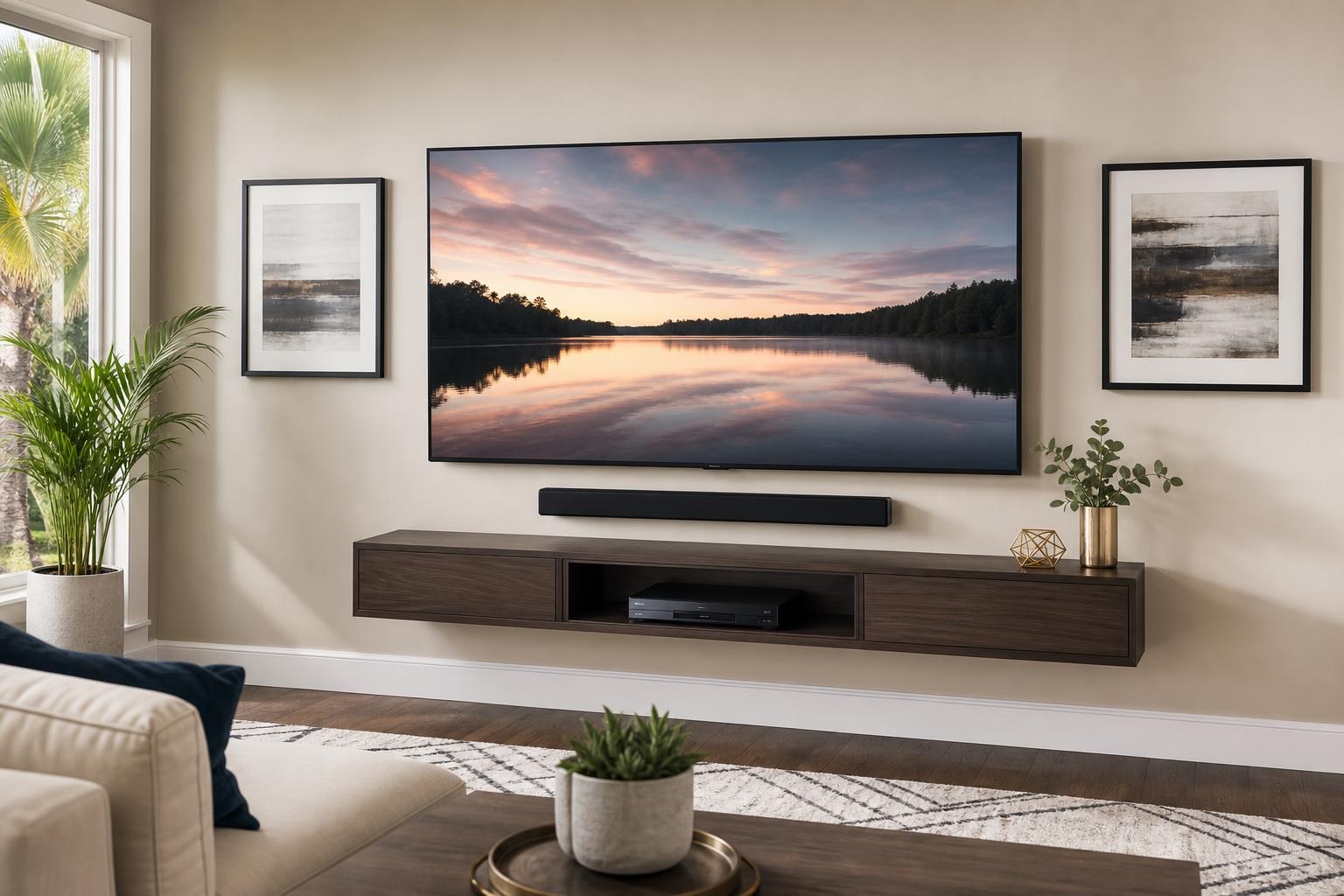
For a clean entertainment wall, consider the player’s width and depth, the direction its cables exit, shelf clearance, ventilation, and access to controls. A floating entertainment center or assembled media console can provide a finished location, but its compartments need to accommodate the actual player and cable bends.
TV Mounting Ocala can combine device hookup with TV mounting, media-furniture assembly, floating entertainment-center installation, and cable organization. Planning these elements as one system helps avoid a player that works correctly but looks awkward or is difficult to use.
When Does Professional Blu-ray Setup Save Time?
Professional setup becomes especially useful when the player is only one part of a larger entertainment system. It can save time when:
- The TV is mounted and its inputs are difficult to reach.
- A soundbar or AV receiver must handle the audio.
- Several HDMI devices need clear input assignments.
- 4K, HDR, or surround-sound compatibility is uncertain.
- Cables need to be routed and organized around mounted furniture.
- The family wants simpler controls and understandable input labels.
- A new entertainment center must be assembled before devices are connected.
- Troubleshooting has turned into repeated cable swapping and menu changes.
A professional can review the equipment as a complete system, connect the Blu-ray and media devices, organize visible cabling, program entertainment controls, and verify everyday operation. This is often more efficient than treating picture, sound, furniture placement, and remote behavior as separate projects.
What to Prepare Before Your Appointment
Keep the TV, player, soundbar, and receiver model information available if possible. Gather the original remotes, the discs you want to test, and any media cables already purchased. If the entertainment center is new, provide its model or assembly details so equipment placement can be considered.
It is also helpful to decide what “easy to use” means for your household. You may want the Blu-ray player labeled clearly, sound to play through the soundbar automatically, or all media devices grouped neatly inside one cabinet. Those preferences influence the finished setup.
Finish the Room With a Setup That Works as One System
A Blu-ray player should not feel obsolete simply because the TV is newer. With compatible equipment, sensible signal routing, appropriate settings, and clean cable organization, physical media can fit naturally into a modern entertainment room.
TV Mounting Ocala serves homeowners and property residents across Marion, Orange, Alachua, Sumter, and Citrus counties. Explore the company’s TV and home entertainment setup services, or get an instant online quote for Blu-ray hookup, TV setup, soundbar integration, cable concealment, or a more complete entertainment-space installation.
Ready to Get the Setup Off Your To-Do List?
Whether you are planning a new TV, soundbar, streaming setup, floating entertainment center, media furniture, pictures, mirrors, shelves, or another related mounting project, TV Mounting Ocala can help you turn the plan into a clean finished setup.
TV Mounting Ocala
(352) 462-1913
Project details, equipment, wall conditions, compatibility, availability, and final pricing can vary. Confirm your exact scope and quote before booking.
Related local services: Furniture Assembly Ocala
Serving another priority local market: TV Mounting The Villages.